Guide · 22 October 2026
Roblox Studio Lighting: Setting Day, Night and Mood for Your Game

By Liska, has been playing Roblox and Murder Mystery 2 for almost three years
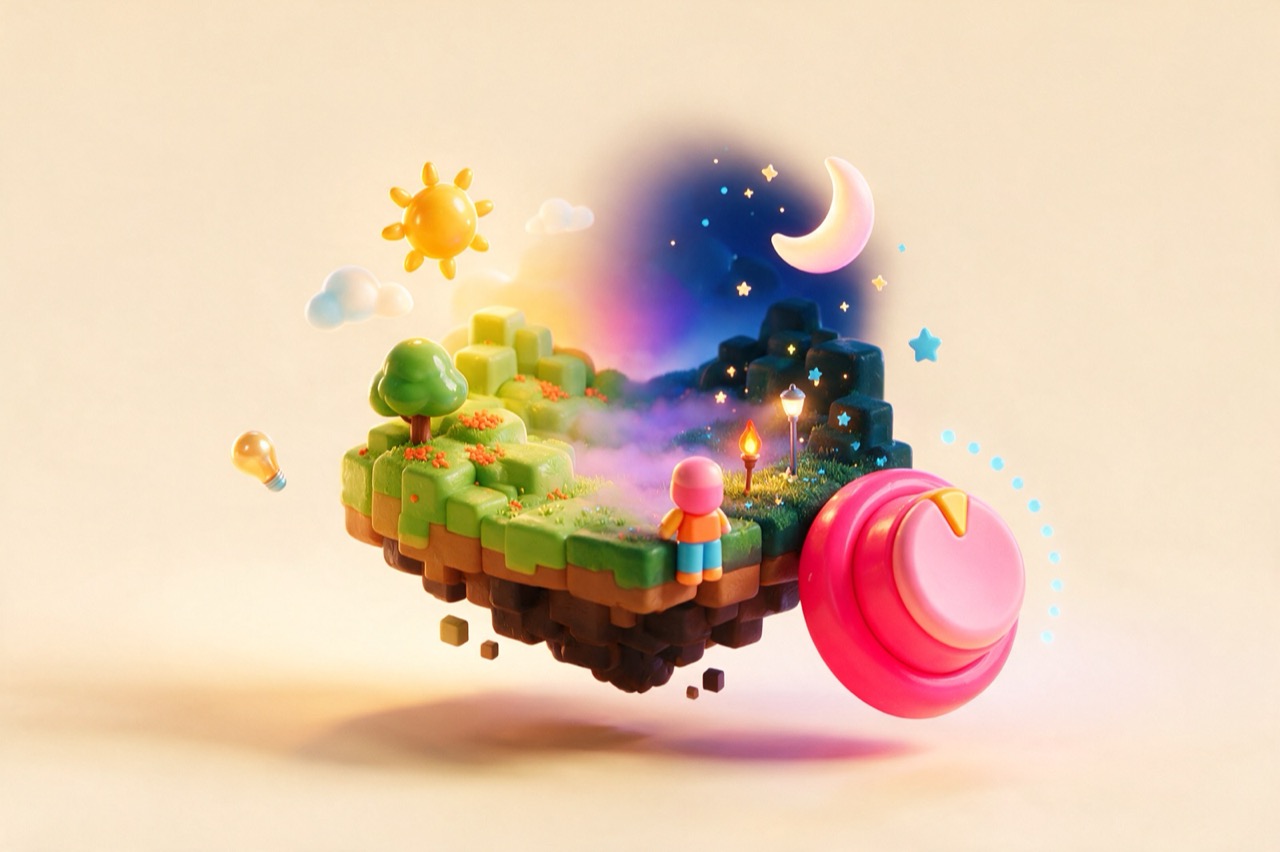
In the Lighting service of Roblox Studio you set the time of day, brightness, colours and haze. This turns your landscape into a sunny day or a night, and PointLight and SpotLight make lamps glow.
Contents
You set the mood of your Roblox game in the Lighting service of Roblox Studio: ClockTime picks the time of day, Brightness, Ambient and OutdoorAmbient set brightness and colour, and Atmosphere adds haze. You build single lamps with PointLight and SpotLight. This guide continues Roblox Studio for beginners and the guide on terrain and landscapes. It is best if you already have a small landscape open. What is Roblox? explains what Roblox is in the first place.
As of 19 October 2026. On this day we checked five pages of the Roblox documentation (Lighting, Atmosphere, Skybox, light sources, post-processing effects). We have marked our own tips as tips.
What the Lighting service is
The Lighting service contains the properties you use to adjust the global lighting of a game. The documentation sorts them into five groups: Color, Intensity, Shadows, Appearance and Environment. You don’t need to know all of them. To start, the time of day, the brightness and two colour values are enough.
Step 1: Set the time of day with ClockTime
Start with ClockTime. It uses hours from 0 to 24. TimeOfDay shows the same time as text in 24-hour format. For example, 6.3 equals 06:18:00. So for a night, set ClockTime to a value like 0 (midnight). For noon, use 12.
Important: time does not move forward on its own. According to the documentation, it does not follow the real time of day and, during a game, only changes through a script. For your game this means: the value you set stays where it is. That is handy if you want a fixed mood, like a village in evening light.
You can also change the position of the sun and moon with GeographicLatitude. But this property changes neither ClockTime nor TimeOfDay.
Step 2: Brightness and colours
Try the following properties one after another and look at the scene after each change:
- Brightness “sets the intensity of illumination”. The documentation gives 0.5, 1.5 and 3.75 as example values. The page does not name fixed default values, so try it out yourself.
- Ambient sets a colour tint for the whole game, inside and outside.
- OutdoorAmbient only tints outdoor areas. Indoor spaces like a garage or a café stay the same.
- ExposureCompensation controls the exposure. Low values look underexposed, high values overexposed.
Our tip for a night: set ClockTime to a value like 0, lower the brightness and give Ambient or OutdoorAmbient a dark, bluish tone. The documentation does not prescribe a colour. For OutdoorAmbient it notes: “late evening is usually cooler and more blue and purple in tone”.
Step 3: Shadows and style
GlobalShadows turns shadows on or off. ShadowSoftness goes from 0 (hard edges) to 1 (soft edges), but it only works if LightingStyle is set to Realistic. LightingStyle comes in two versions: Realistic, which Roblox calls its most advanced lighting, and Soft, with a flatter look in the style of early Roblox.
Step 4: Haze with Atmosphere
An Atmosphere object makes the air visible. According to the documentation on Atmosphere, it has these properties:
- Density: The higher the value, the more particles block the view of objects and terrain.
- Offset: A high value creates a silhouette on the horizon. With a low value, distant objects blend into the sky. Balance Offset and Density carefully.
- Haze: Sets how hazy the atmosphere looks.
- Color: Gives the atmosphere a colour tint. The effect gets stronger with high Haze.
- Glare: A glow around the sun, only visible when Haze is greater than 0.
- Decay: The colour tint of the atmosphere away from the sun, only visible when Glare and Haze are greater than 0.
For fog, combine Density, Haze and Color. Always change only one value at a time, otherwise you won’t know what made the difference.
Step 5: Sky, sun, moon and stars
The Sky object is made of a skybox, which is a cube of six images. Your own images must fit together seamlessly and must be imported into Roblox first. The sun, moon and stars are included by default. They “dynamically appear, rise, and set based on the TimeOfDay or ClockTime property values”. Among other things, you can adjust StarCount (the number of stars) and the size of the sun and moon. If you turn off CelestialBodiesShown, all celestial bodies disappear.
Step 6: Effects like Bloom and ColorCorrection
Post-processing effects put a filter over the picture. According to the documentation:
- Bloom: “When this effect has a high value, parts with light colors glow.” So bright surfaces glow.
- ColorCorrection: Has the properties Brightness, Contrast, Saturation and TintColor. With these you make the picture paler, stronger or warmer.
- SunRays: Rays around the sun that move with the time of day.
- DepthOfField: Blurry areas outside the focus.
Step 7: Your own lamps with PointLight and SpotLight
The Lighting service lights the whole scene, while lamps add highlights. According to the documentation on light sources, a PointLight shines in all directions from one point, like a ball (light bulbs, torches). A SpotLight shines as a cone (street lamps, flashlights). With Face and Angle you set the side and the beam angle. A SurfaceLight shines from a whole surface, for example on signs. They all share Color, Brightness and Shadows, and each of these lights has a Range. Note: “Brightness is still limited to the light’s defined range”. So more brightness does not make the area bigger. For that you need more Range. You place PointLight and SpotLight inside an Attachment or a BasePart. For light at an exact point, the page recommends the Attachment for the PointLight. A SurfaceLight belongs inside a BasePart.
Where the information comes from
All facts come from the English Roblox documentation in the Creator Hub:
- Lighting: ClockTime, TimeOfDay, Brightness, Ambient, OutdoorAmbient, shadows, LightingStyle.
- Atmosphere: Density, Offset, Haze, Color, Glare, Decay.
- Skybox: Sky object, sun, moon, stars.
- Post-processing effects: Bloom, ColorCorrection, SunRays, DepthOfField.
- Light sources: PointLight, SpotLight, SurfaceLight.
Conclusion
ClockTime picks the time of day. Brightness, Ambient and OutdoorAmbient tune brightness and colour, and Atmosphere adds haze and depth. Bloom and ColorCorrection give the picture its finishing touch, and PointLight and SpotLight put lights into the scene. Always change only one value and look at the result. That way you see what each property does.
Frequently asked questions
How do I set the time of day in Roblox Studio?+
With the ClockTime property in the Lighting service. According to the Roblox documentation, it counts hours from 0 to 24. TimeOfDay shows the same time as text in 24-hour format (6.3 equals 06:18:00). Time does not pass on its own: it “doesn't follow the actual time of day”, and during a game it only changes when a script changes it.
What is the difference between Ambient and OutdoorAmbient?+
Ambient “sets a hue for the entirety of a game” and affects both outdoor and indoor areas. OutdoorAmbient only tints the outdoor areas. Indoor spaces stay the same.
How do I make fog or haze in my game?+
With an Atmosphere object. Density controls how many particles in the air block the view of objects and terrain, and Haze sets how hazy it looks. If you combine Haze with Color, the documentation says you can create moods like a smoky tint for a polluted alien planet or a foggy blue tone for a gloomy game.
What is the difference between PointLight and SpotLight?+
PointLight shines in all directions from one point, like a ball. It works well for light bulbs, torches and fireballs. SpotLight shines as a cone. It works well for street lamps, flashlights and floodlights. For both, the Range limits how far the light reaches.